
Introduction
Cables and hoses can be made interactive and flexible in SynergyXR using a simple 3D rig setup.
With this setup, users can grab either end of a cable and move it around while the cable deforms between the two ends. Each end can also be connected to specific attachment points in the Procedure Builder, allowing users to plug in cables or attach hoses to equipment.
This can be useful for interactions such as:
- Connecting electrical cables
- Attaching hoses to equipment
- Connecting pipes or flexible tubing
- Plugging cables into different connection points
- Creating sandbox interactions where cables can be connected, disconnected and moved between different locations
The setup is surprisingly simple. All you need is a rig with three bones and some basic weight painting on a single mesh.
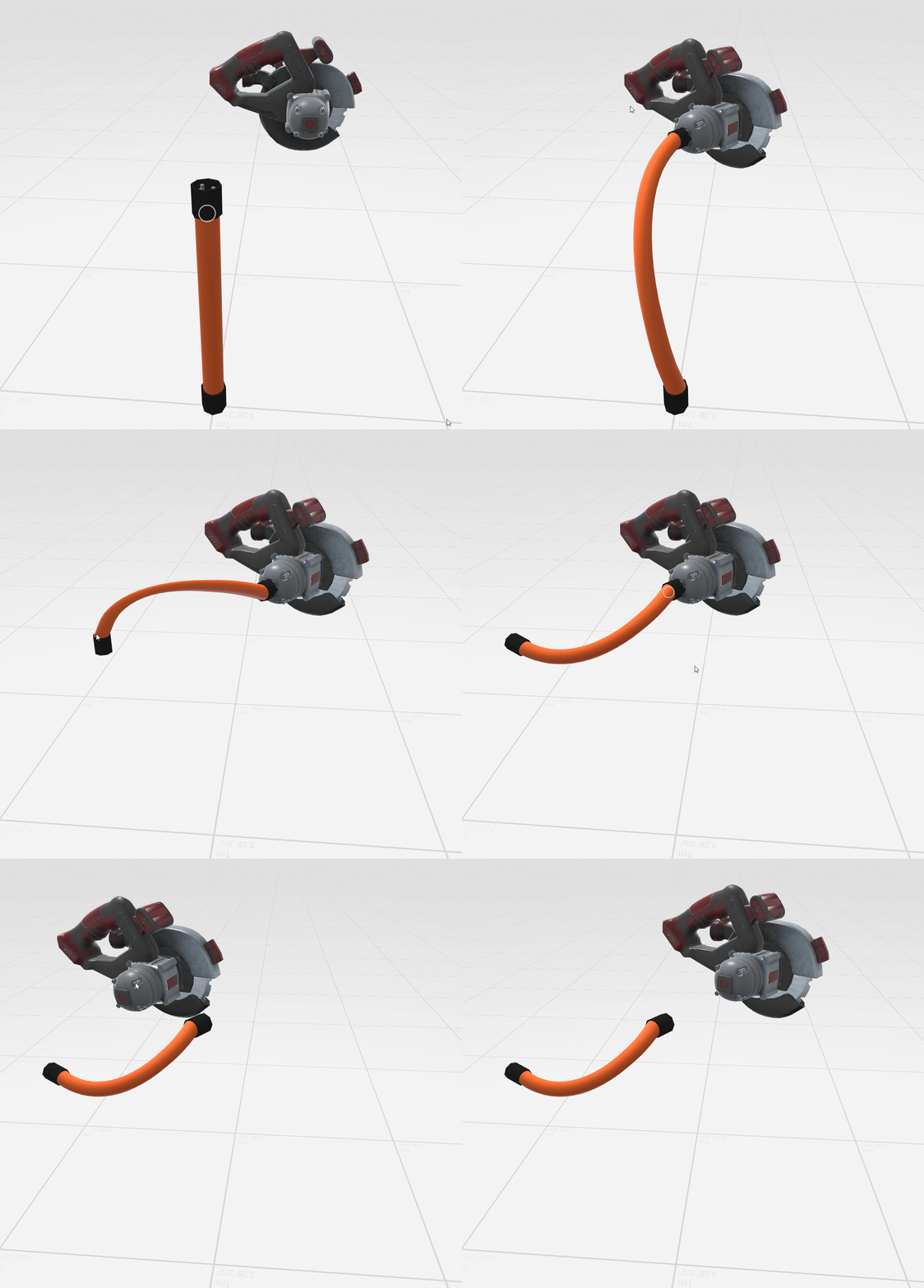
NB: Basic knowledge of Blender, including rigging and weight painting, is required to follow the Blender setup in this article.
Download the example files
We've included two example files so you can try this setup yourself.
- Blender 5.2 file (.blend): Contains a simple cable model, armature and weight painting. Use this if you want to customize the cable or create your own variations.
-
Ready-to-use model (.glb): Import this directly into SynergyXR to try the interaction in your own Procedure without needing Blender. The model is a simplified example intended to demonstrate the functionality rather than represent a specific type of cable.
Download: Cable_Interactions.zip
Customizing the cable in Blender
If you want to use your own cable or hose model, you can use the included Blender file as a starting point without having to create the entire rig from scratch.
Understanding the rig
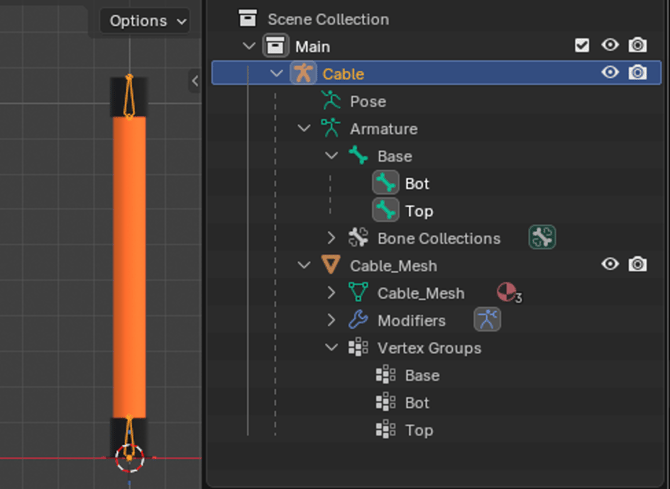
The example consists of a single mesh and an armature made up of just three bones:
- Base: The root of the armature.
- Top: Controls the top end of the cable.
- Bottom: Controls the bottom end of the cable.
The Base bone is positioned at one end of the cable and serves as the root of the rig. The Top and Bottom bones are positioned at their respective ends.
Using your own cable mesh
To replace the example cable with your own model:
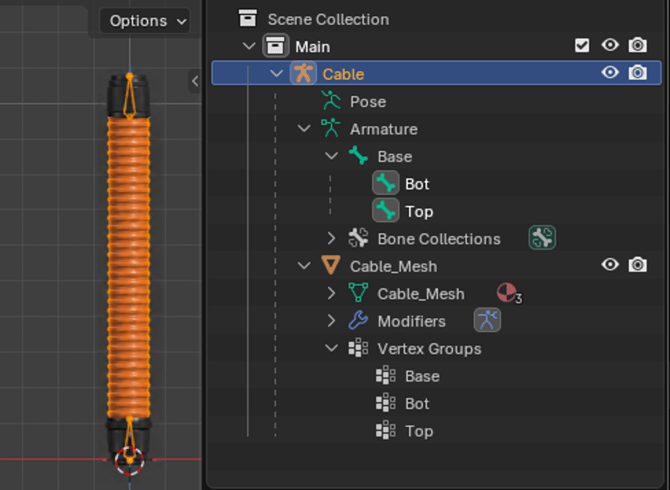
- Open the provided Blender file.
- Import or create your own cable or hose mesh.
- Position and scale your mesh so its ends align with the Top and Bottom bones.
- Make sure your cable is a single mesh object. If it consists of multiple mesh objects, you can join them using Ctrl + J.
- Select the mesh, then hold Shift and select the armature. Press Ctrl + P and choose With Empty Groups to parent the mesh to the armature.
- Assign the appropriate vertex weights to the Top and Bottom bones, as described below.
You can remove the original example mesh once your new mesh is set up and working.
Weight painting
The top and bottom ends of the cable mesh should be fully weighted to their corresponding bones so that the connectors follow the bones without deforming.
The flexible middle section (the cable itself) uses a weight gradient between the Top and Bottom bones. The influence gradually transitions from one bone to the other, reaching approximately 50/50 around the middle.
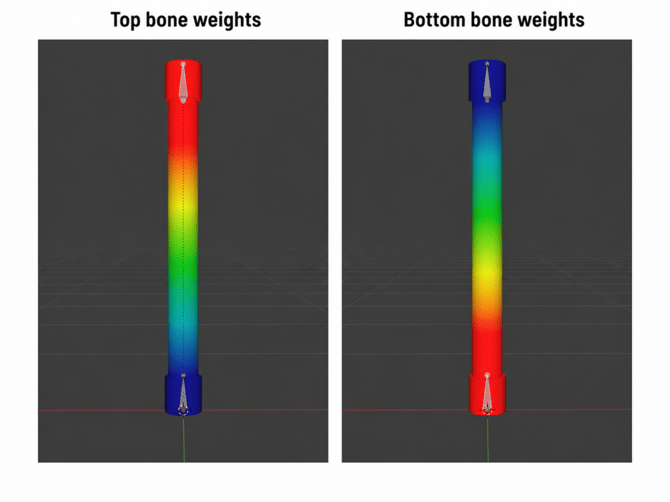
Make sure the corresponding vertex groups are assigned correctly and that the mesh has an Armature modifier referencing the existing rig.
This simple weighting allows the middle section to deform between the two ends as either bone is moved.
Preview weights
You can test the deformation in Blender by entering Pose Mode and moving or rotating either of the end bones.
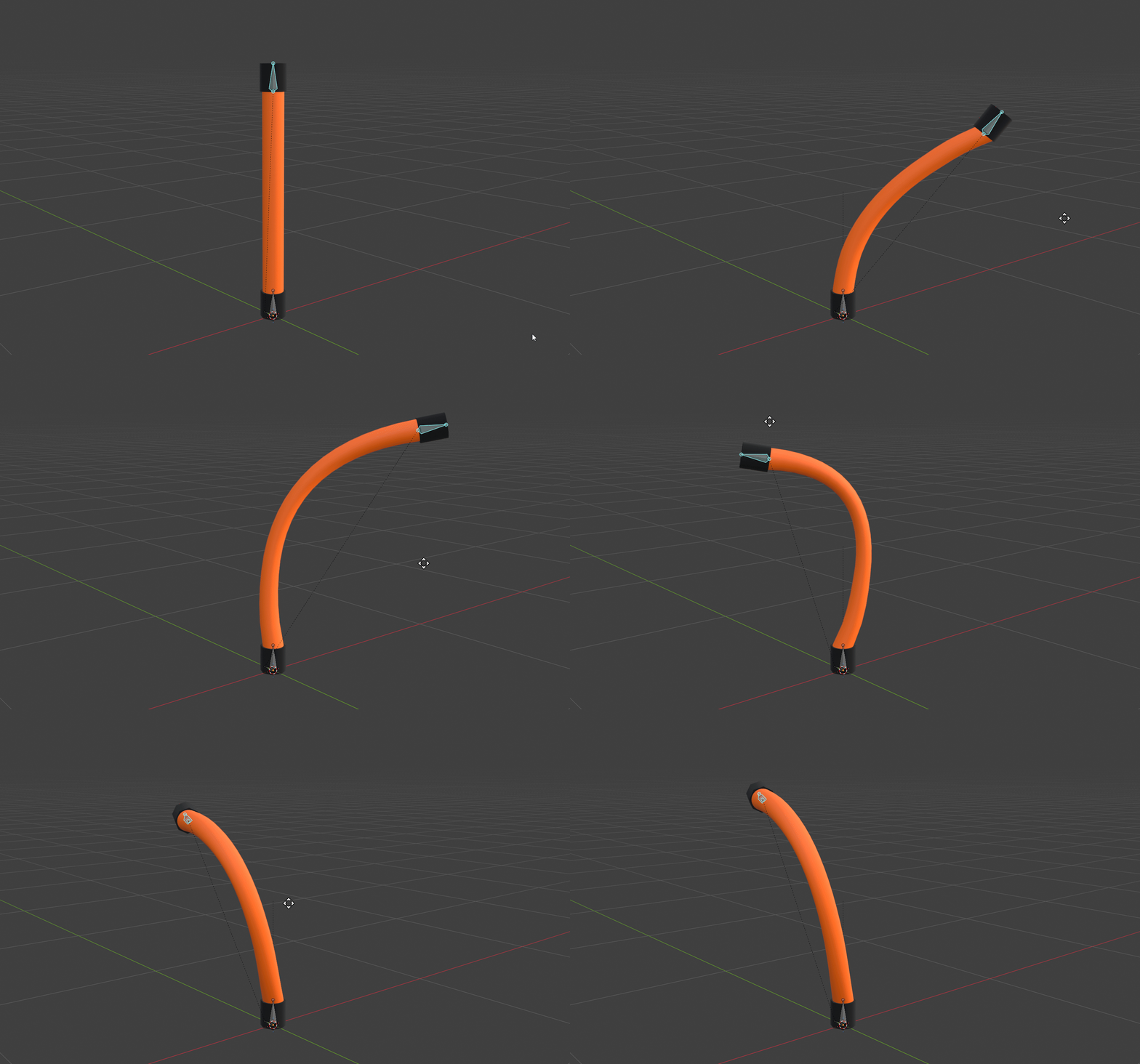
Once you're happy with the result, export the rigged model as a GLB and import it into your Procedure.
Setting it up in the Procedure Builder
Once you've imported the rigged GLB model into your Procedure, you can use the Top and Bottom bones to create interactions for each end of the cable.
Adding colliders
Start by adding a collider directly to each of the Top and Bottom bones in the Object Setup.
These colliders allow the individual cable ends to be targeted by operations in the Procedure Builder.
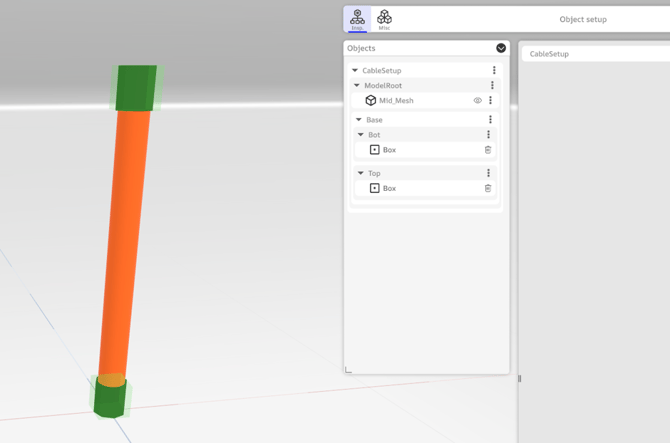
Creating interactions
With the colliders in place, you can use Grab and Place operations to let users grab and reposition either end of the cable.
Because each end is controlled by a separate bone, moving one end causes the middle section to deform while the opposite end remains in place.
This allows you to create different interactions depending on your training scenario, such as positioning a hose, connecting a cable to equipment or moving cable ends between different attachment points.
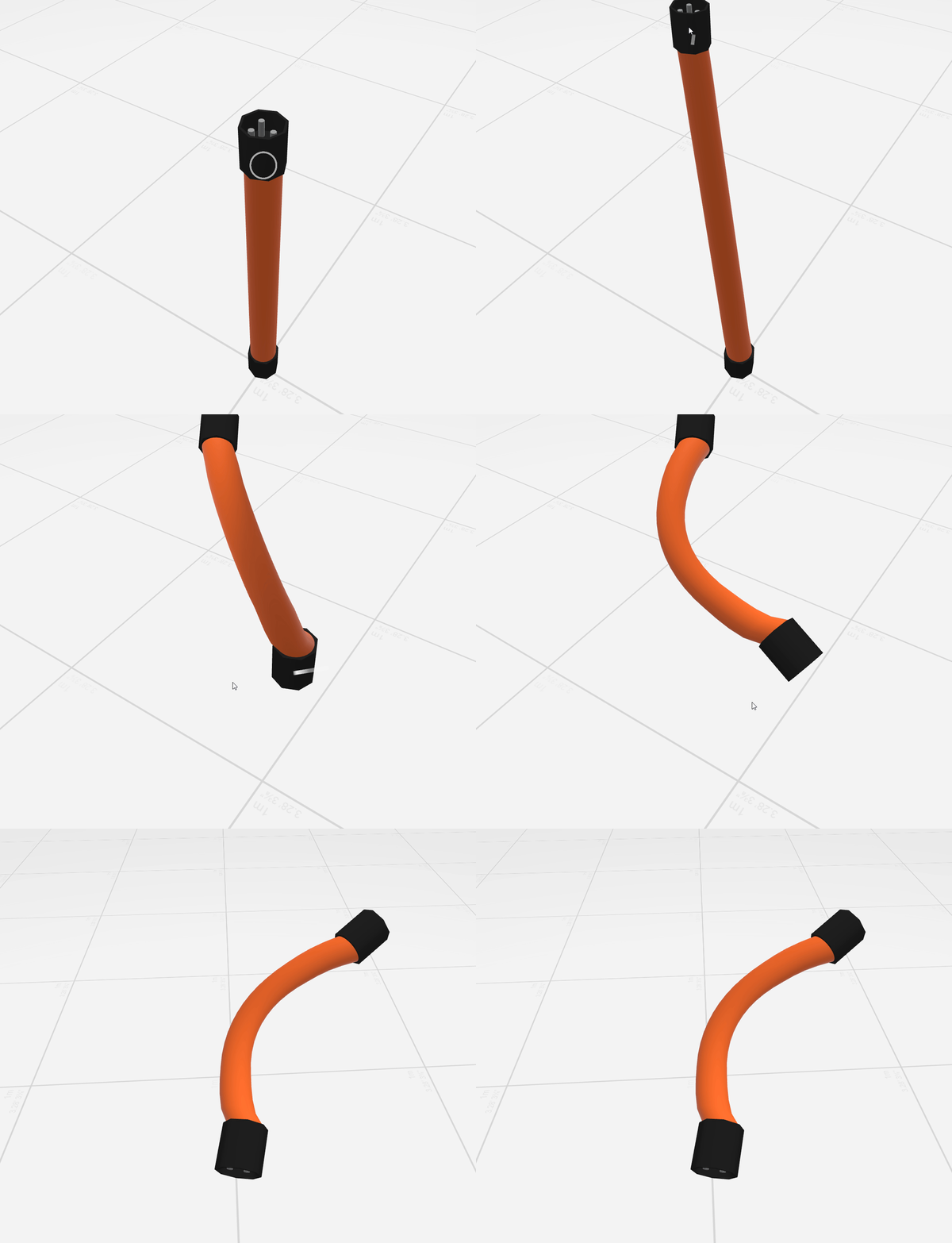
Attaching cable ends to other objects
You can take this setup a step further by using the New Parent setting in the Grab and Place operation.
This allows you to assign a new parent to the cable end when it is placed, effectively attaching it to another object.
For example, you can connect one end of the cable to a piece of equipment that needs to be moved during the training.
Once attached, the cable end will follow the position and rotation of its new parent. This means you can move or rotate the equipment while the cable remains connected and deforms accordingly.
This is particularly useful for scenarios involving movable equipment, tools or other objects that need to remain connected to a cable or hose while being repositioned.
To get the entire cable to follow make sure to set both ends to be parented to the new object, this can also be achieved with a Transform Object action's New Parent field.
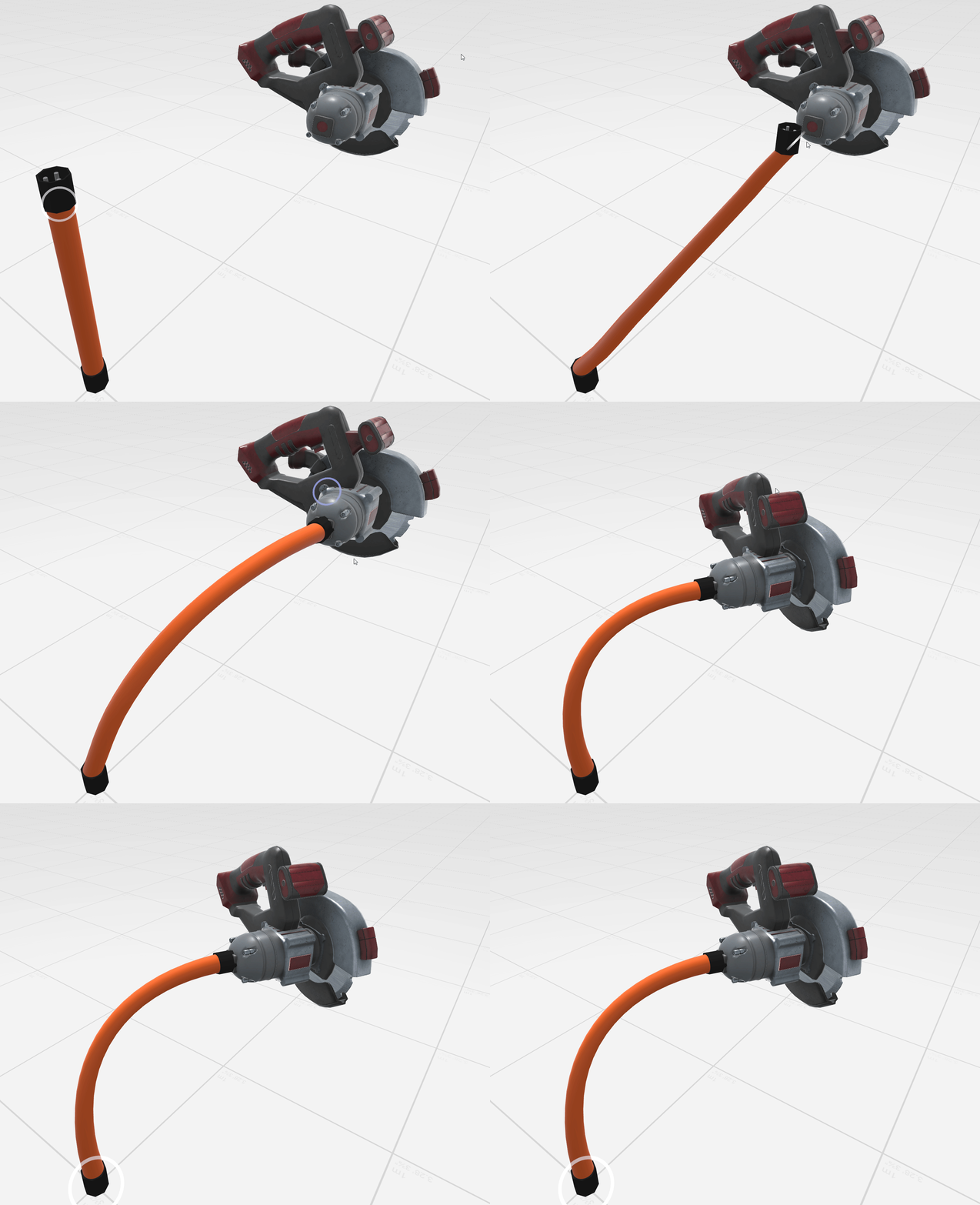
Limitations
While this setup works well for many cable and hose interactions, there are a few things to keep in mind.
Mesh deformation: At angles above ~120 degrees (depending on your weight paint), the middle section of the cable may start intersecting with itself or get very thin. This can be reduced by adjusting the weight painting to better suit your specific scenario.
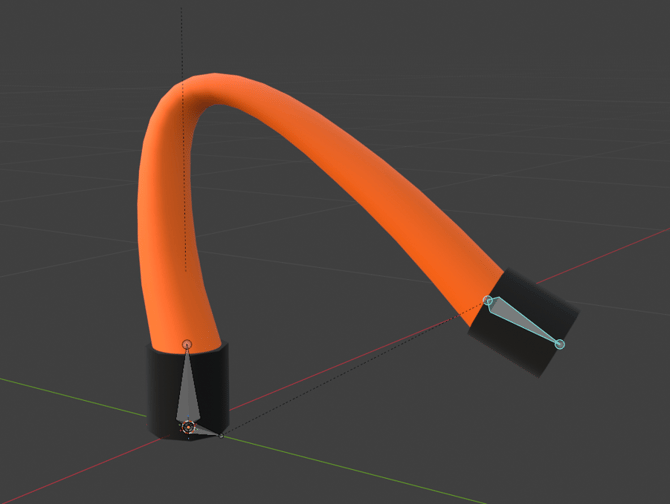
Texture stretching: Textures will stretch along with the mesh as the cable deforms, which can result in visible distortion, especially when the cable is stretched or bent at extreme angles.
For most basic cable and hose interactions, this simple three-bone setup provides an easy way to create flexible connections without requiring a complicated rig.