
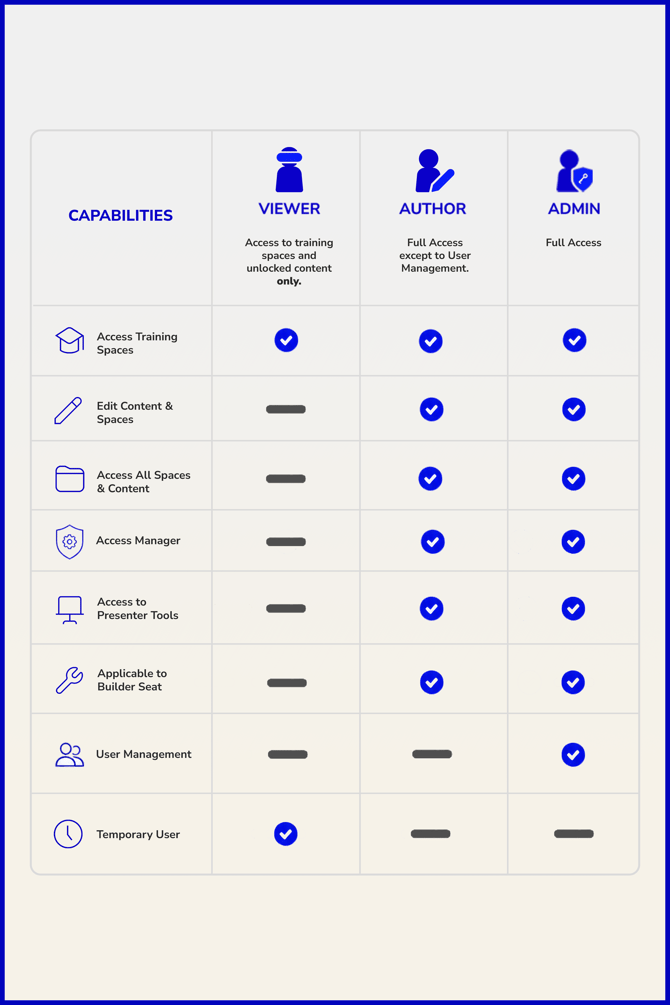
User Roles and Permissions in SynergyXR
SynergyXR uses role-based access control to manage what users can see and do within a workspace. Every user is assigned one of three roles: Viewer, Author, or Admin. Roles are set at the workspace level, meaning a user can have different roles across different workspaces within the same organisation.
Roles Overview
Viewer is the standard role for end users whose primary purpose is to consume training content and enter training sessions. Viewers can only access spaces that have been designated as Training Spaces, and only see content that has been unlocked for them. They cannot edit anything, access the Manager portal, or see spaces and content outside their permitted scope. The Viewer role supports Temporary User access, which is useful for contractors, guests, or time-limited training assignments.
Author is the role for content creators, trainers, and platform operators. Authors have full access to the platform except user management. They can create and edit content and spaces, run sessions across all spaces, use the Manager portal, and access Presenter Tools. Authors who need to build procedures or custom environments can be assigned a Builder Seat, which unlocks the Procedure Builder and the Environment Builder (a Unity plug-in). A Builder Seat is not required to manage or upload content.
Admin has full access to everything in the workspace, including user management. Admins can invite users and assign roles. Typically this role is held by platform owners or the person responsible for managing who has access to the workspace.
Capability Matrix
| Capability | Viewer | Author | Admin |
|---|---|---|---|
| Access Training Spaces | Yes | Yes | Yes |
| Edit Content and Spaces | No | Yes | Yes |
| Access All Spaces and Content | No | Yes | Yes |
| Access Manager | No | Yes | Yes |
| Access to Presenter Tools | No | Yes | Yes |
| Applicable to Builder Seat | No | Yes | Yes |
| User Management | No | No | Yes |
| Temporary User | Yes | No | No |
Temporary User
The Temporary User option applies to the Viewer role only. It allows a Viewer account to be time-limited, after which access is automatically revoked. This is commonly used for contractors, external training participants, or any situation where ongoing platform access is not needed after a defined period.
Builder Seat
A Builder Seat is an add-on that can be assigned to an Author or Admin. It unlocks access to the Procedure Builder and the Environment Builder (Unity plug-in). It is not required for uploading or managing content - only for building procedures and custom environments. Organisations typically hold a small number of Builder Seats for the people actively developing XR content.
Practical Guidance
When setting up a new workspace, assign the Admin role to one or two platform owners responsible for user management. Authors should be limited to those who actively create or maintain XR content and spaces. All other employees, technicians, or learners should be set as Viewers. If a user only needs temporary access, use the Temporary User option on the Viewer role rather than creating and later manually deactivating a permanent account.
Role changes take effect immediately and can be updated at any time by an Admin from the Manager portal.